
🚀 Getting Started with EP-EXEC
🌟 Key Benefits:
- ✅ Free to use - no hidden costs
- ✅ Priority given to affected communities
- ✅ Employers contact you when jobs match your skills
- ✅ Easy to use - just need basic internet skills
Visit: www.ep-exec.co.za
Click "go to portal" or scan the QR code from the registration guide
- ✅ Send a WhatsApp message
- ✅ Use Facebook
- ✅ Browse the internet on your phone or computer
Our site office staff can also help you register if you need assistance.
📝 Step-by-Step Registration Process
🎬 Interactive Video Guide
Watch the complete registration process from start to finish. This video shows the actual EP-EXEC portal workflow, including handling existing accounts.
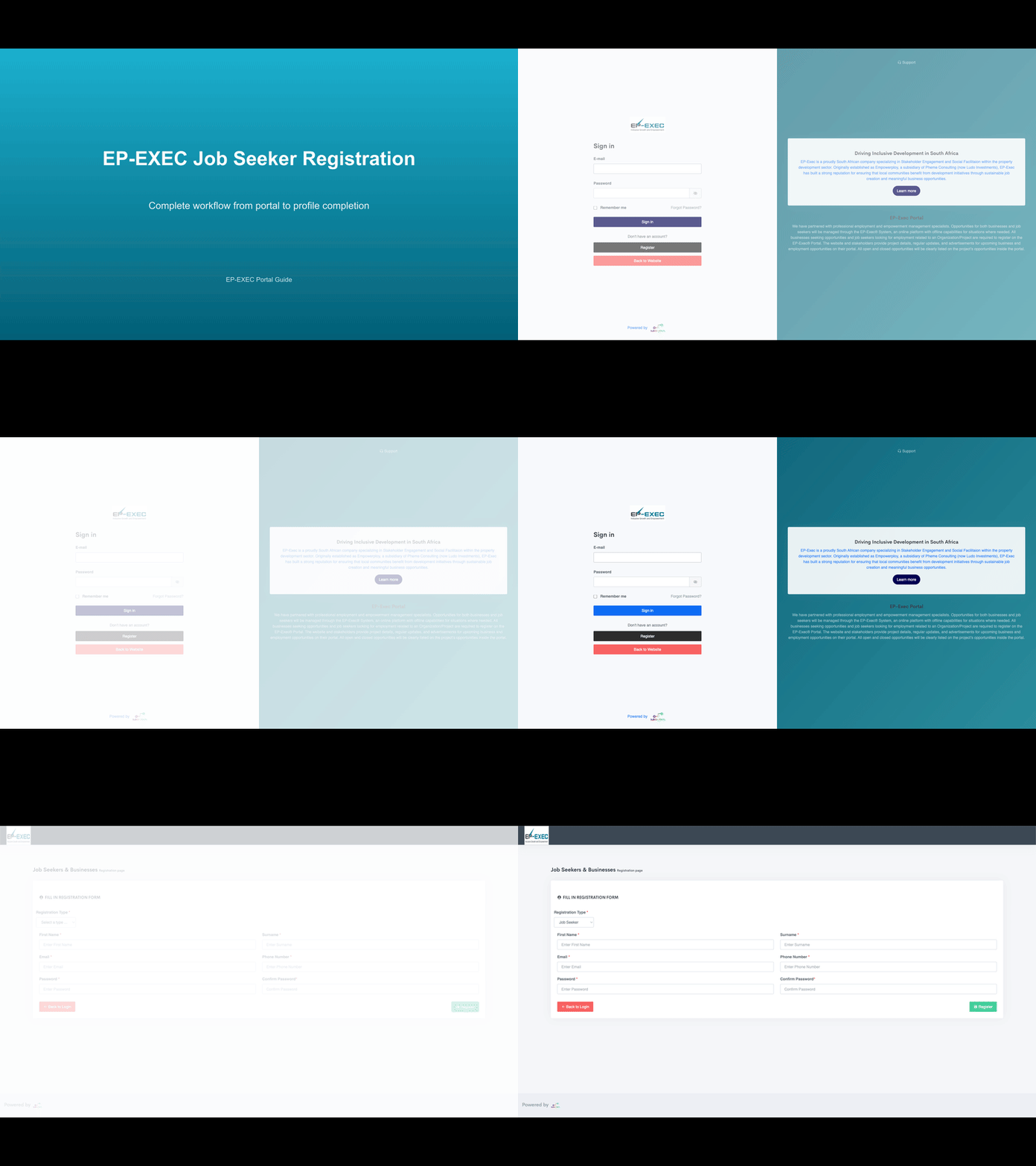
Actual EP-EXEC portal screens and forms
Shows what happens with existing accounts
From registration to profile completion
📋 What You'll Learn in This Video
🌐 Portal Navigation
- Starting from the main EP-EXEC portal
- Finding the registration page
- Understanding the login vs register options
📝 Registration Process
- Selecting "Job Seeker" registration type
- Filling out the registration form completely
- Handling validation errors
🔄 Account Management
- What happens if email already exists
- Automatic switching to login mode
- Successfully logging into existing account
👤 Profile Completion
- Personal information tab
- Address, education, and work history
- Skills and language proficiencies
- Open your web browser (Chrome, Safari, etc.)
- Type: www.ep-exec.co.za
- Click "go to portal" on the landing page
- You'll see the sign-in page
- Click the "Register" button (not "Sign in")
💡 Don't have an account yet? That's what we're fixing right now!
- You'll land on the "Job Seekers & Businesses registration page"
- Look for "Registration Type" dropdown
- Click the dropdown arrow
- Select "Job Seeker" (not "Business")
✅ This tells the system you're looking for work, not hiring people
- First Name: Your real first name
- Surname: Your real surname/family name
- Email: Your email address (very important - write it correctly!)
- Phone Number: Your cellphone number
- Password: Create a strong password you'll remember
- Confirm Password: Type the same password again
When everything is filled in, click the green "Register" button
👤 Complete Your Profile (This is Important!)
🎯 After registration, you'll land on your Job Seeker Profile page
- Title: Mr/Mrs/Miss
- Gender: Male/Female
- Date of Birth: When you were born
- Country of Birth: Usually South Africa
- Race: Select from dropdown
- Marital Status: Single/Married/etc.
- Bio Summary: Short description about yourself
- Street Address: Your house number and street name
- City: Your city (e.g., Pretoria)
- Province: Select your province
- Locality: Your specific area (e.g., Soshanguve)
- Postal Code: Your area's postal code
- Occupation Year & Month: When you moved to this address
- Occupation Status: Do you rent or own?
- High School Name: Name of your high school
- Email: Your school's email (if you know it)
- Year Passed: What year did you finish school?
- Highest Grade: What's your highest grade (e.g., Grade 12)
Add Your School Subjects:
- Click "Add School Subject"
- Select each subject you passed
- Add your grade for each subject
Add College/University (if you went):
- Click "Add Tertiary Information"
- Add university/college name
- Add your course and year completed
- Add your qualification (e.g., Diploma, Degree)
For each job you've had:
- Click "Add Career History"
- Job Title: What was your job called?
- Employer Name: Name of the company
- Start Month & Year: When did you start?
- End Month & Year: When did you leave? (or select "Current" if you still work there)
- Job Status: Current/End of contract/etc.
- Citizenship Country: Usually South Africa
- Identification Type: RSA ID (South African ID)
- Identification Number: Your 13-digit ID number
- Issue Date: When you got your ID
- Expiry Date: When your ID expires
- Issue Office: Where you got your ID
- Permit Reference: Leave as "None" if you're South African
- Click "Add Attachment"
- Select document type (ID copy, CV, certificates, etc.)
- Choose the file from your phone/computer
- Upload it
- ✅ Copy of your ID
- ✅ Your CV (if you have one)
- ✅ School certificates
- ✅ College/University certificates
- ✅ Previous work certificates
Add Your Skills:
- Click "Add Skill"
- Choose from the dropdown list
- Add as many skills as you have
Add Languages You Speak:
- Click "Add Language"
- Select each language you can speak
- Add your level (basic, intermediate, fluent)
📊 Using Your Dashboard (After Registration)
1. 📨 EOI (Expression of Interest) - Total: 0
- This shows how many job interests you've sent
- Click here to send interest when you see jobs you want
2. 📄 APPLICATIONS - Total: 0
- Track the progress of jobs you've applied for
- See if employers have seen your application
3. ✅ JOBS - Total: 0
- See jobs you've been selected for
- This is where the good news appears!
4. 📝 MY CV - Edit CV
- Click here to edit your profile anytime
- Add new skills, update your address, etc.
- Log in to portal.ep-exec.co.za
- Click "Dashboard" at the top
- Click on "MY CV" (orange box)
- Click on any tab you want to edit:
- Personal Info
- Address
- Education
- Work History
- Citizenship
- Attachments
- Skills/Language
- Make your changes and click "Save"
💼 How You'll Get Job Opportunities
Here's how it works:
- 🚀 Complete your profile (all the steps above)
- 🔍 Employers search for people with skills they need
- 📞 They contact you directly when your skills match
- ✨ You get notified via email or phone
- ✅ Complete ALL sections of your profile
- ✅ Upload ALL your documents
- ✅ Add ALL your skills (even basic ones)
- ✅ Keep your contact details updated
- 📱 You'll get a call or email from EP-EXEC or the employer
- 📋 They'll explain the job - what it is, where, when, how much
- 🤝 You can ask questions - don't be shy!
- ✅ If you want the job, say yes
- 📝 They might interview you or ask you to start immediately
🎥 Video Guides (Coming Soon)
Duration: ±1 Minute
Welcome to EP-EXEC, your gateway to local employment and empowerment opportunities. EP-EXEC connects job seekers and businesses to real opportunities at Soshanguve Southview Shopping Centre and other key projects. Whether you're looking for work or seeking to provide services, EP-EXEC simplifies access to opportunities—all in one platform. Let's explore how easy it is to get started.
Add your video link here
Duration: ±1.5 Minutes
- Go to https://portal.ep-exec.co.za
- Click on 'Register' and select 'Job Seeker'.
- Fill in your personal details: full name, ID or passport number, and contact information.
- Upload your proof of locality and any qualifications or experience.
- Accept the POPIA Terms and Conditions to protect your information.
- Click Submit. Congratulations, you're now registered! Keep your profile updated to improve your chances of being hired.
Add your video link here
Duration: ±2 Minutes
- Go to https://portal.ep-exec.co.za
- Click on 'Register' and select 'Business Registration'.
- Enter your business name, registration number, and contact details.
- List the services your business offers and your area of operation.
- Upload your company profile, references, and proof of locality.
- Don't forget to accept the POPIA Terms and Conditions.
- Submit your registration. Only registered businesses can access project opportunities on EP-EXEC.
Add your video link here
Duration: ±2 Minutes
- Log into your account and navigate to the 'Opportunities' section.
- Here you'll find open projects and Expressions of Interest, or EOIs.
- Review the details, requirements, and submission deadlines.
- Click 'Apply' and complete the EOI form directly within the portal.
- Once submitted, track your application status from your dashboard.
- Shortlisted businesses will be contacted for quotes or further steps.
Reminder: Only registered businesses can apply for EOIs. Keep your profile updated for the best chance of success.
Add your video link here
Duration: ±1.5 Minutes
- Login at https://portal.ep-exec.co.za
- Go to your business dashboard and select 'Declare Personnel'.
- List each employee's details and indicate their status as:
- Declared Local (DL)
- Declared Non-Local (DNL)
- EP-EXEC Sourced Local (EPSL)
- EP-EXEC Sourced Non-Local (EPSNL) - Upload proof of locality for local employees.
- Once submitted, your declarations are stored securely in the system, ensuring compliance with project requirements.
Add your video link here
Duration: ±1 Minute
- Login to https://portal.ep-exec.co.za
- Click on 'Profile' to view or edit your details.
- Update your personal information, qualifications, or business documents as needed.
- The more accurate your profile, the higher your chances of being considered for opportunities.
Add your video link here
Duration: ±45 Seconds
Need assistance? The EP-EXEC support team is here to help.
- Email: admin@ep-exec.co.za
- Call: 063 453 1739
- WhatsApp: 069 135 0638
For step-by-step guides, FAQs, and support, always visit https://portal.ep-exec.co.za and click on 'Help'.
Add your video link here
Support & Contact Details
- Email: admin@ep-exec.co.za
- Cell: 063 453 1739
- WhatsApp: 069 135 0638
- Tel: 010 100 3392
- Platform Access: https://portal.ep-exec.co.za
🏢 Information for Businesses
- 🏢 Property Developers
- 🏬 Retail Companies
- 🏗️ Construction Companies
- 🚚 Service Providers
- 🏦 Government Projects
- ✅ Access to local skilled workers
- ✅ Transparent hiring process
- ✅ Improved community relations
- ✅ Compliance with local hiring requirements
- ✅ Easy workforce management
To register as a business:
- Go to portal.ep-exec.co.za
- Select "Business Registration" instead of "Job Seeker"
- Follow the business registration process
Contact us for business setup:
- Email: admin@ep-exec.co.za
- Call: 063 453 1739
- WhatsApp: 069 135 0638
We'll help you set up your company profile and start finding local talent!